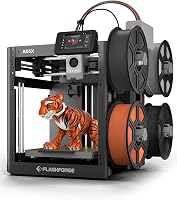
Snapmaker U1 Review: A Four-Head Multicolor Printer (October 2026)
This Snapmaker U1 review finds a strong fit for makers who often print in several colors or materials: four independent toolheads switch in 5 seconds. Choose it if you have room for a 57.9 lb printer and a regular need for those changes.
On this page (8 sections)
- Snapmaker U1 review: what does the four-toolhead design change?
- Is the Snapmaker U1 worth choosing for multicolor printing?
- How should you plan the U1’s setup and workspace?
- What speed should you expect from the Snapmaker U1?
- What mistakes should U1 buyers avoid?
- How does the Snapmaker U1 compare with alternatives?
- Who should buy the Snapmaker U1, and who should skip it?
- Snapmaker U1 review verdict: which one should you choose?
The Snapmaker U1 review comes down to how often you need multiple colors or materials in one print. Four independent toolheads switch in 5 seconds, which suits makers who regularly use those options and have a stable place for a 57.9 lb machine.
If your prints are mostly one-color parts, a simpler printer is easier to justify. The U1’s standout feature earns its place when a project benefits from dedicated toolheads and fewer filament changes through one nozzle.
Snapmaker U1 review: what does the four-toolhead design change?
The U1 keeps four filaments loaded in separate toolheads, so it can switch tools instead of repeatedly loading, unloading and purging one shared nozzle. Snapmaker says its SnapSwap system changes toolheads in 5 seconds and can reduce filament waste by up to 5X.
Snapmaker U1: Best for frequent material changes

- 4 independent toolheads
- 5-second tool changes
- 270 x 270 x 270 mm build volume
- Up to 500 mm/s
The U1 keeps four filaments loaded in separate toolheads and switches between them for multicolor or mixed-material prints. It fits makers who expect to use those features often and have room for a 57.9 lb machine.
Pros
- Dedicated toolhead for each loaded filament
- 5-second tool changes
- Automatic toolhead offset calibration
- Supports a wide range of listed filament types
Cons
- 57.9 lb weight calls for a stable, planned location
- Four toolheads may be more setup than simple single-material prints need
This arrangement is useful for prints with distinct color regions, a rigid body and flexible detail, or support material that needs to come away from the finished part. Each filament has its own toolhead, so you can plan a print around those transitions.
The U1 also includes a touchscreen, remote app control, a built-in model library and Snapmaker Orca slicing software. Automatic filament management, AI-powered print monitoring and toolhead offset calibration are intended to reduce routine setup work.
Is the Snapmaker U1 a fit for your projects?
The U1 fits a project list that regularly calls for color changes, mixed materials or dedicated support filament. It is harder to justify when nearly every job is a simple, single-color part.
Before choosing a four-toolhead machine, look at a handful of things you actually want to print. Note how many colors or materials each needs and whether flexible or soluble support matters.
Then consider how often those needs occur to judge whether the extra system will see regular use.
Is the Snapmaker U1 worth choosing for multicolor printing?
The U1 is worth considering if you make multicolor or mixed-material prints often. Its separate toolheads are designed to reduce the repeated filament changes and purging associated with a shared nozzle.
Snapmaker lists PLA, PVA, TPU, PETG, PCTG, ABS, ASA, PA and PC as compatible filaments. It describes combining rigid and flexible materials, water-soluble supports and engineering materials in one print.
Compatibility does not mean every combination will suit every design. Check the needs of the specific part and materials, especially if it depends on a flexible section, soluble support or a reliable bond between materials.
If you are still weighing whether multicolor is worth the added workflow, our guide to the best multicolor 3D printers for beginners compares different approaches.
How should you plan the U1’s setup and workspace?
Plan a stable, accessible location before moving the U1 into place. Its stated dimensions are 22.6 x 13 x 14.2 inches, and its 57.9 lb weight makes a permanent or carefully chosen workstation more sensible than a small, frequently moved surface.
Measure the printer’s space and the route from the delivery point to the workstation. Leave access for filament handling and routine operation, and follow Snapmaker’s setup directions for placement and clearance.
For initial setup, work through the on-screen process and automatic calibration before starting a detailed multicolor job. Begin with a simple print to learn the slicer, touchscreen and app workflow.
Then add colors or materials after you understand the basic steps. Our guide to setting up a 3D printer covers a useful first-day sequence.
What speed should you expect from the Snapmaker U1?
The U1’s stated maximum speed is up to 500 mm/s. Treat that as a machine capability, not a promise that every model will print at that speed or finish well at the same rate.
Print time depends on the model, layer settings, material and number of tool changes. A multicolor model involves additional changes and details, while a single-color part may not benefit from the toolhead system at all.
Snapmaker describes its CoreXY motion system, vibration compensation and extrusion tuning as features intended to support accurate printing at speed. Choose based on the work you plan to do, rather than maximum speed alone.
What mistakes should U1 buyers avoid?
The biggest mistake is choosing the U1 for a feature you expect to use only occasionally. If your usual jobs do not need several colors, mixed materials or dedicated support, compare a simpler option before committing to a four-head workflow.
Another common mistake is assuming that every compatible filament pair will work well together without adjustment. Match materials to the part, check their print requirements and begin with a straightforward design before building a complex print around a new combination.
Avoid placing the machine where you cannot comfortably access it or where moving it will be a frequent chore. Measure the location and route first, then give yourself room to handle filament and operate the printer.
How does the Snapmaker U1 compare with alternatives?
The Bambu Lab P2S Combo leads this group by score, while the U1 is the direct choice for buyers who want four separate toolheads. The Creality K2 Combo offers an expandable color system, and the Flashforge Creator 5 also uses four independent toolheads.
| Printer | Multicolor approach | Stated speed | Useful distinction |
|---|---|---|---|
| Bambu Lab P2S Combo | P2S printer with AMS 2 Pro | Up to 600 mm/s | AMS 2 Pro includes filament drying up to 65 °C |
| Snapmaker U1 | 4 independent toolheads | Up to 500 mm/s | 270 x 270 x 270 mm build volume |
| Creality K2 Combo | K2 with one CFS unit | 600 mm/s | Up to 16 colors with four CFS units |
| Flashforge Creator 5 | 4 independent toolheads | Up to 600 mm/s | 7-second tool changes |
The Bambu Lab P2S vs P1S comparison offers more context on the P2S. The P2S by itself does not support multicolor printing, so the Combo is the relevant version in this comparison.
Which printer suits your multicolor workflow?
Choose by the way each system handles your projects and how much capacity you need. The P2S Combo pairs the printer with AMS 2 Pro for multicolor and multimaterial printing, plus filament drying up to 65 °C.
Bambu Lab P2S Combo: Best for a connected multicolor workflow
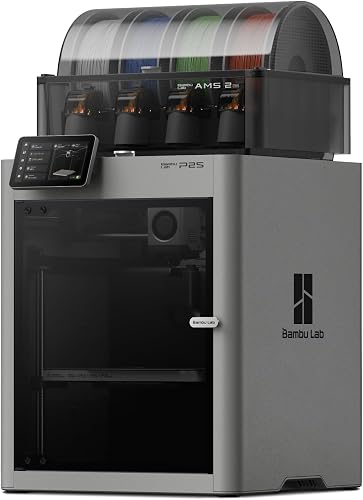
- AMS 2 Pro combo
- Up to 600 mm/s
- Automatic calibration
- AMS filament drying up to 65 °C
The P2S Combo pairs the printer with AMS 2 Pro for multicolor and multimaterial printing. Its stated workflow also includes automatic calibration and filament drying in the AMS.
Pros
- AMS 2 Pro enables multicolor and multimaterial printing
- Filament drying up to 65 °C
- Automatic calibration
- AI failure detection
Cons
- The P2S printer alone does not support multicolor printing
- The stated speed does not guarantee the same result with every model
The Creality K2 Combo includes one CFS unit, and Creality says up to four CFS units can support up to 16 colors. Its build volume is 260 x 260 x 260 mm, smaller than the U1’s.
Creality K2 Combo: Best for expanding color capacity

- One CFS unit included
- Up to 16 colors with 4 CFS units
- 260 x 260 x 260 mm build volume
- AI camera
The K2 Combo includes one CFS unit, with the option to connect up to four CFS units for up to 16 colors. Consider it if color capacity is a priority and you want to expand beyond the included setup.
Pros
- One CFS unit is included
- Supports up to 16 colors with four CFS units
- Auto leveling and AI camera
- Pre-assembled setup
Cons
- The 16-color setup requires four CFS units
- Build volume is smaller than the U1's stated volume
The Flashforge Creator 5 has four independent toolheads, 7-second changes and a stated maximum speed of up to 600 mm/s. Its product information does not give a build volume, so confirm that the machine and intended projects suit your available space and needs.
Flashforge Creator 5: Best for fast tool changes

- 4 independent toolheads
- 7-second tool changes
- Up to 600 mm/s
- Automatic calibration
The Creator 5 uses four independent toolheads and 7-second swaps for multicolor and multimaterial work. It shares the U1's separate-toolhead approach, with a different stated swap time and speed.
Pros
- Four independent toolheads
- 7-second swaps with background preheating
- Automatic calibration
- Supports PLA, PETG, TPU and support materials
Cons
- No build volume is given here for checking project fit
- Speed and waste reductions are manufacturer claims
Who should buy the Snapmaker U1, and who should skip it?
Buy the U1 if you regularly create multicolor or mixed-material parts and can give the printer a stable, accessible place. Its four loaded toolheads, automatic offset calibration and listed material range directly support that kind of work.
Skip it if you mostly print one-color models or want the simplest possible starting point. Beginners who specifically want multicolor can still consider it, but a straightforward single-material printer is a better match when color and material changes are rare.
Our beginner 3D printer guide helps compare simpler starting points, while PLA vs PETG explains two common filament choices.
Snapmaker U1 review verdict: which one should you choose?
Choose the Snapmaker U1 when frequent color or material changes are central to your projects and you have space for its four-toolhead system. Choose the Bambu Lab P2S Combo if the AMS 2 Pro workflow and filament drying suit your needs, or the Creality K2 Combo if you want the option to expand color capacity with additional CFS units.
For occasional one-color printing, choose a simpler machine. The clearest reason to buy the U1 is having regular projects that make its separate toolheads useful.
Frequently asked questions
What makes the Snapmaker U1 different from a single-nozzle multicolor printer?
The U1 has four independent toolheads, each holding a filament, and changes toolheads in 5 seconds. That approach avoids repeatedly loading, unloading and purging a shared nozzle for each change.
Snapmaker says this can reduce waste and speed up multicolor work, though results depend on the print and setup.
Can the Snapmaker U1 print with different materials?
Yes. Snapmaker lists PLA, PVA, TPU, PETG, PCTG, ABS, ASA, PA and PC among compatible materials, and describes using different materials in one print.
Check that the specific materials and print settings suit your part, since compatibility does not guarantee every combination will work well.
Is the Snapmaker U1 suitable for a first-time buyer?
It may suit a beginner who specifically wants multicolor or mixed-material printing and is comfortable learning a four-toolhead workflow. Its touchscreen, model library, automatic filament management and calibration are intended to simplify setup, but a simpler printer may be easier if you only plan to print in one material.
How much space should I allow for the Snapmaker U1?
The U1 measures 22.6 x 13 x 14.2 inches and weighs 57.9 lb. Leave room to access the machine and handle filament, and check the route to its final location before moving it.
Follow Snapmaker's setup instructions for any required clearance.