8 Best Multi-Color 3D Printers for Beginners (October 2026)
The best beginner multi-color 3D printers include the Bambu Lab P1S Combo for enclosed home printing, the Bambu Lab A1 Combo for guided first prints, and the Snapmaker U1 for less color waste.
On this page (7 sections)
- Which multi-color 3D printer suits a beginner?
- The best multi-color 3D printers for beginners
- What should beginners compare before buying a multi-color printer?
- How do you set up a multi-color 3D printer for the first print?
- What care and use habits help keep color prints reliable?
- What mistakes do new multi-color printer owners make?
- Which multi-color 3D printer should a beginner choose?
The Bambu Lab P1S Combo is the best multi-color 3D printer for beginners who want an enclosed design and automatic bed leveling. The A1 Combo is a good fit for automatic calibration, while the Snapmaker U1 suits projects that benefit from separate toolheads.
A multi-color printer adds a color-handling system to the usual first-printer choices. To find your fit, decide how many colors you expect to use, how much setup help you want, and whether an enclosed or compact printer works in your home.
If you're still choosing your first machine, read our plain guide to 3D printers for home use and checklist for deciding whether to buy a 3D printer. Our first-day setup steps can help you plan what happens after unboxing.
Our picks at a glance
-
1

-
2

-
3

Which multi-color 3D printer suits a beginner?
The P1S Combo is the strongest all-around fit for beginners who want an enclosed machine, while the other picks serve clearer priorities such as automatic calibration, reduced purging or compact placement. Choose a color workflow you can manage before you compare speed claims.
The scores reflect how well each printer’s stated features match beginner priorities such as setup, calibration and color handling. A high score does not mean every feature will suit your projects.
| Product | Best for | Design | Multi-color system | Filaments | Our score |
|---|---|---|---|---|---|
| Bambu Lab P1S Combo | enclosed home printing | Enclosed | AMS required | PLA, PETG, TPU, PVA, PET, ABS, ASA; PA and PC capable | 9.1 |
| Bambu Lab A1 Combo | guided first prints | AMS lite required | 8.7 | ||
| Snapmaker U1 | less color waste | PLA, PVA, TPU, PETG, PCTG, ABS, ASA, PA and PC | 8.5 | ||
| Anycubic Kobra X | growing color projects | PLA, PETG, TPU, PVA and ASA | 8.4 | ||
| Flashforge AD5X | smaller color models | 8.3 | |||
| Elegoo Centauri 2 Combo | monitored color printing | 8.0 | |||
| Creality SPARKX i7 Combo | quick unboxing | 7.7 | |||
| Creality SPARKX i7 Nano Combo | tight desk space | 7.3 |
How should you choose the best multi-color 3D printer for beginners?
The best multi-color 3D printer for beginners should fit your workspace, expected color count and comfort with setup. Compare the color-changing system as carefully as the printer itself.
Automatic calibration can reduce manual setup, but you'll still need to learn basic slicing, filament loading and print checks. For a broader overview of tools and materials, see what you need to start 3D printing at home.
The best multi-color 3D printers for beginners
These 8 picks are ordered by score. The right choice depends on the setup tradeoff that matters most to you, from an enclosed body to an expanding color range.
Bambu Lab P1S Combo: Best for enclosed home printing
- Enclosed design
- Automatic bed leveling
- AMS required for multi-color printing
- Set up in 15 minutes
The enclosed body and automatic bed leveling suit beginners who want a contained setup and room to explore several filament types. AMS is required for multi-color printing.
Pros
- Enclosed design
- Automatic bed leveling
- Supports a range of common filaments
Cons
- AMS is required for multi-color printing
- Carbon and glass fiber reinforced polymer is not recommended
The Bambu Lab P1S Combo is the top pick for a beginner who wants an enclosed printer with automatic bed leveling. AMS is required for multi-color printing.
Bambu Lab says setup takes 15 minutes. The printer supports PLA, PETG, TPU, PVA, PET, ABS and ASA, and is capable with PA and PC.
Carbon and glass fiber reinforced polymer is not recommended.
Choose the P1S if you want an enclosed design and a range of supported materials to explore. Skip it if you want to start with multi-color printing without an AMS system; make sure the bundle you choose includes the required hardware.
Bambu Lab A1 Combo: Best for guided first prints
- AMS lite required for multi-color printing
- Full-auto calibration
- Quiet printing features
- Includes LED lamp kit
Automatic calibration and a simplified touchscreen make the A1 Combo a practical first printer. Its LED kit adds a clear project goal with compatible printed lamp designs.
Pros
- Automatic calibration
- AMS lite supports multi-color printing
- Includes LED lamp kit
Cons
- AMS lite is required for multi-color printing
- Check the exact package and connection options before choosing
The Bambu Lab A1 Combo suits beginners who want automatic calibration and a touchscreen. Its AMS lite is required for multi-color printing, and the package includes an LED lamp kit for compatible light projects.
The A1 handles calibration processes such as Z-offset and bed leveling automatically. It also has active motor noise canceling and a stated build volume of 256 x 256 x 256 mm.
Choose the A1 Combo if you value automatic setup steps and like the idea of making an illuminated model. Skip it if an enclosed design is a priority, or if you don't want an AMS lite based color workflow.
Snapmaker U1: Best for less color waste
- Four independent toolheads
- 5-second tool changes
- Automatic toolhead offset calibration
- Built-in model library
Four dedicated toolheads switch colors or materials without repeatedly loading and purging through one nozzle. The model library and automatic calibration support the workflow.
Pros
- Four independent toolheads
- Automatic toolhead offset calibration
- Supports mixed materials
Cons
- Weighs 57.9 lb
- Four toolheads may be more capability than a first-time user needs
The Snapmaker U1 suits a beginner who wants four dedicated toolheads and less filament purging during color changes. Each toolhead holds its own filament, and Snapmaker says the tool changer switches in about 5 seconds.
That approach supports mixed-material prints, including combinations of rigid and flexible filament or soluble supports. Automatic toolhead offset calibration reduces one manual adjustment task.
The U1 has a 270 x 270 x 270 mm build volume, a model library and custom open-source slicing software called Snapmaker Orca. Its four-toolhead system and broad material range leave more to learn than a basic color workflow.
Choose it if you expect to make mixed-material parts or want to reduce purge waste. Skip it if your plans are limited to occasional, simple color accents and you prefer a lighter machine; it weighs 57.9 lb.
Anycubic Kobra X: Best for growing color projects

- Four colors built in
- Expandable to 19 colors with four ACE 2 Pro units
- Auto bed leveling
- 260 mm cube build size
The Kobra X starts with four-color printing and can expand with additional ACE 2 Pro units. Auto leveling and a model library help new owners get started.
Pros
- Four colors built in
- Expandable color system
- Automatic bed leveling
Cons
- Expansion requires additional ACE 2 Pro units
- Filament is not included
The Anycubic Kobra X fits a beginner who wants to start with four colors and leave room to expand. Anycubic says the palette can grow to 19 colors with four ACE 2 Pro units.
Auto bed leveling and a model library address first-layer setup and finding a design to print. Its build volume is 260 x 260 x 260 mm, and it supports PLA, PETG, TPU, PVA and ASA.
Choose it if four colors cover your first projects and the option to expand appeals to you. Skip the expansion plan if you don't expect to use more colors, since reaching the larger palette requires extra ACE 2 Pro units.
Plan to supply your own spools, as filament is not included.
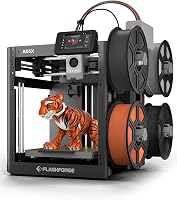
Flashforge AD5X: Best for smaller color models

- Up to 4 colors
- 1-click auto leveling
- Automatic filament feeding and retraction
- Power-loss resume
One-click auto leveling and automatic filament feeding simplify routine steps. Its build area fits many desktop projects, though larger models call for another pick.
Pros
- One-click auto leveling
- Automatic filament feeding and retraction
- Print resume after power loss
Cons
- Stated build volume is smaller than the other listed volumes
- Compare its build volume with your planned projects
The Flashforge AD5X suits a beginner who wants one-click auto leveling and automatic filament feeding. It supports up to four colors and can resume printing after a power loss.
Its build volume is 220 x 220 x 220 mm. The AD5X also supports nozzle sizes from 0.25 mm to 0.8 mm, with a 0.4 mm nozzle pre-installed.
The Flash Maker app offers remote print monitoring and control. Choose this printer for desktop models and everyday prints that fit its build area; skip it if you already expect to make larger pieces and want more room to grow.
Elegoo Centauri 2 Combo: Best for monitored color printing

- 4-color CANVAS printing
- Full auto calibration
- 22 sensors
- 5-inch touchscreen
Full auto calibration and pre-print checks aim to reduce manual setup steps. A touchscreen, model library, slicer and app form one connected workflow.
Pros
- Full auto calibration
- 22 sensors monitor prints
- 5-inch touchscreen
Cons
- Uses the ELEGOO software ecosystem
- Check that its workflow fits your preferred devices
The Elegoo Centauri 2 Combo suits a beginner who wants calibration and monitoring built into the workflow. Its CANVAS system supports four-color printing, and 22 sensors monitor prints in real time.
A 5-inch touchscreen is designed to make operation more direct. Nexprint provides models, ELEGOOSlicer prepares projects and the ELEGOO Matrix app supports remote control.
Choose the Centauri 2 Combo if you want a four-color setup with pre-print checks and an on-printer screen. Skip it if you don't want to learn a connected brand software workflow; make sure its apps suit the devices you plan to use.
Creality SPARKX i7 Combo: Best for quick unboxing

- Pre-assembled design
- Four-color capability
- Auto leveling
- AI camera monitoring
Its pre-assembled design and auto leveling target beginners who want a short setup path. The camera can monitor prints and detect several common issues.
Pros
- Pre-assembled design
- Four-color capability
- AI camera monitoring
Cons
- Five-minute setup is a Creality claim
- Confirm the exact bundle and software workflow before choosing
The Creality SPARKX i7 Combo fits beginners who want a pre-assembled machine and a short setup path. Creality says the printer arrives 95% pre-assembled and can go from unboxing to a first print in 5 minutes.
It supports four-color printing and has a 260 x 260 x 255 mm build volume. Its built-in AI camera can monitor prints and detect issues such as filament tangles and build plate problems.
Choose it if quick setup and camera monitoring matter to you. Skip it if you want to assess setup based on a guaranteed time; the five-minute figure is Creality's claim, and your setup will depend on your space and preparation.
Creality SPARKX i7 Nano Combo: Best for tight desk space

- Compact desktop design
- Automatic filament feed and retract
- Auto refill
- AI camera monitoring
Its compact desktop design and automatic filament handling suit a beginner looking to save workspace. Auto refill can switch to a backup spool when one runs out.
Pros
- Compact desktop design
- Automatic filament feed and refill
- Remote monitoring
Cons
- No build volume is available for comparison
- Check the product dimensions against your workspace
The Creality SPARKX i7 Nano Combo suits a beginner who wants multi-color printing in a compact desktop setup. Its automatic feed and retract system handles filament loading, while auto refill can switch to a backup spool when one runs out.
The built-in AI camera supports remote monitoring, and the printer connects over Wi-Fi through Creality Cloud. Tool-free replacement of the hotend, extruder and cutter is designed to make routine maintenance easier.
Choose the Nano Combo if workspace is limited and automatic filament handling sounds useful. Skip it if your project size is the deciding factor: no build volume is available here to compare, so check that the actual print area fits before choosing.
What should beginners compare before buying a multi-color printer?
Beginners should compare the color system, setup help and workspace before focusing on headline speed. A printer that fits your actual projects and comfort level is easier to keep using.
Does the color system use one nozzle or several toolheads?
Shared-nozzle systems change filament through the same nozzle, while the Snapmaker U1 uses four independent toolheads. Dedicated toolheads can reduce repeated unloading and purging, though they add a distinct workflow to learn.
Check how many colors are supported out of the box and whether extra units are needed to expand. The P1S and A1 combos require their respective AMS systems for multi-color printing.
How much setup help does a beginner need?
Automatic bed leveling and calibration can reduce manual setup, but you'll still need to load filament, prepare a model and follow the printer's instructions. The A1 Combo has full-auto calibration, while the P1S Combo has automatic bed leveling.
For help with the first setup, follow our 3D printer setup guide for beginners. A clean build surface and suitable filament storage also matter once you start printing.
Will the printer fit your projects and your room?
Compare the stated build volume with the largest object you expect to print, then measure the shelf or desk where the printer will sit. Leave room to load filament and reach the printer for routine tasks.
The P1S is enclosed, while the other listed models have different configurations. If you're deciding between compact and larger machines, our guide to large 3D printers for home projects can help you weigh the space tradeoff.
Which filament should a beginner start with?
PLA is a common starting material, and several printers here support it. Follow the printer and filament guidance for loading and print settings, especially before trying mixed materials or less familiar filaments.
Once you have a printer, our PLA vs PETG guide explains the basic differences between two common materials. Start with one material and a small number of colors before adding more variables.
How do you set up a multi-color 3D printer for the first print?
A calm first setup starts with a suitable spot, the correct filament path and a simple model. Use the machine's setup guide and built-in calibration before attempting a large, complex multi-color design.
First, place the printer on a stable surface with enough room to reach its loading points and print area. For enclosed models, open the door or cover as needed during setup and follow the maker's instructions for ventilation and material use.
Next, identify which color system your printer uses. Load each spool into the assigned slot or toolhead, then confirm the filament type and color in the slicer so the software's tool assignments match the physical setup.
For a first job, choose a small model with two colors and a broad, stable base. This lets you learn how the slicer assigns colors and how the printer changes filament without using a large amount of material.
Stay nearby for the start of the print and check that the first layer is sticking evenly. If it lifts or shifts, stop and address the surface, leveling or settings before using the same setup for a longer job.
What care and use habits help keep color prints reliable?
Basic care means keeping the print surface clean, checking filament paths and making changes one at a time. These habits make it easier to identify why a print succeeds or fails.
Keep filament dry and stored as its maker recommends. Damp filament can affect print quality, and a multi-color setup may have several spools exposed to room air at once; see our guide to drying 3D printer filament if you notice poor extrusion or stringing.
Remove leftover filament and dust from accessible areas according to the printer's instructions. Before each print, check that the build surface is clean and that the selected color slots or toolheads contain the materials named in your project.
Use the right material profile and nozzle settings for the filament you load. When changing material types, check compatibility first rather than assuming that a profile for one material will work for another.
When a print has a problem, change one setting or one part of the setup at a time. A short note about the filament, color assignments and issue can help you avoid repeating the same adjustment later.
What mistakes do new multi-color printer owners make?
New owners often add too many variables at once. Start with a simple model and a small color count, then add complexity after you understand the basic workflow.
- Choosing a model larger than the build area: check the object dimensions in the slicer before printing. A model that barely fits may also leave little room to adjust its orientation.
- Mixing materials too early: different material types can need different settings and may not work well together. Learn color changes with one material first.
- Loading colors in the wrong order: compare the slicer's color assignment with the physical spool slots or toolheads before starting.
- Assuming color capability comes in every bundle: the P1S Combo and A1 Combo need their respective AMS systems for multi-color printing. Check that the configuration you choose includes the needed component.
- Starting with a long, detailed model: use a small sample first so you can catch an incorrect assignment or first-layer issue early.
- Ignoring spool handling: follow the printer's loading path and keep filament from tangling or snagging as it feeds.
If the first layer won't stick, pause and troubleshoot the surface and leveling process with our guide to fixing 3D printer adhesion. Avoid changing many settings at once, since that makes the cause harder to identify.
Which multi-color 3D printer should a beginner choose?
Pick the P1S Combo if you want an enclosed printer with automatic bed leveling. Choose the A1 Combo for automatic calibration, the Snapmaker U1 for four dedicated toolheads and reduced purging, or the Kobra X if you want to start with four colors and may expand later.
The AD5X is a sensible fit for smaller desktop models, the Centauri 2 Combo for a workflow with print monitoring, and the SPARKX i7 Nano Combo for a compact setup with automatic filament handling. The regular SPARKX i7 Combo targets buyers who want a pre-assembled design and camera monitoring.
Before choosing, match the print area to your projects and confirm which color hardware comes with the configuration you plan to buy. For other beginner options, compare our fast 3D printer picks and large 3D printer guide.
Our top 3 picks at a glance
-
1
-
2
-
3
Frequently asked questions
What is the easiest multi-color 3D printer for a beginner?
The Bambu Lab A1 Combo is a strong choice if you want automatic calibration, while the Creality SPARKX i7 Combo targets buyers who want a pre-assembled printer. The A1 needs AMS lite for multi-color printing.
Choose by the workflow and space that fit your first projects.
Do multi-color 3D printers waste more filament?
Some color systems purge filament during changes, which can create waste. The Snapmaker U1 switches among four independent toolheads, while shared-nozzle systems may need to load, unload and purge.
If reducing changeover waste matters, compare how each system handles the colors you plan to use.
Do I need special filament for multi-color printing?
You generally need a separate filament color loaded for each color you want to print. Material support varies by printer, so check compatibility before mixing types such as PLA, PETG or TPU in one project.
Start with one material and a small number of colors while learning the slicer.
Should a beginner buy an enclosed 3D printer?
An enclosed printer can suit someone who wants a contained setup or plans to explore filaments beyond PLA. The P1S Combo has an enclosed design, while the other picks have different configurations.
Consider the supported materials and the space where you'll use the printer.