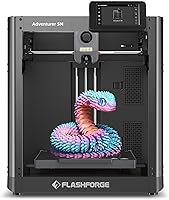
3D Printer for Home Use: A Plain Guide for First-Time Buyers
The right 3D printer for home use fits your projects, room, and appetite for setup. For a first FDM printer, compare print area, calibration, materials, and whether you need an enclosure or multi-color printing.
On this page (10 sections)
- What should you look for in a 3D printer for home use?
- Which type of 3D printer works best at home?
- How much space does a home 3D printer need?
- Which home 3D printer fits a first-time buyer?
- What do you need to start 3D printing at home?
- Is a home 3D printer easy to use?
- How should you set up a 3D printer for home use?
- How do you care for a home 3D printer?
- How much should you spend on a home 3D printer?
- How do you choose the right 3D printer for home use?
A 3D printer for home use should fit your projects, available space, and comfort with setup. For many first-time buyers, an FDM printer is a practical starting point because it uses filament to make household parts, organizers, toys, and hobby models.
Before you compare machines, decide where the printer will sit and what you hope to make first. Those decisions narrow the useful print size, material support, and features far more quickly than a long list of specifications.
This guide compares four FDM options and explains how to choose, set up, and care for a printer at home. For the equipment and software beyond the printer itself, see what you need to start 3D printing at home.
What should you look for in a 3D printer for home use?
Choose a home printer by matching its footprint, print area, and workflow to your projects. A long feature list has little value if the printer does not fit your work area or the objects you want to make.
Start by listing three likely projects. A small hook or cable guide needs less build space than a helmet, a large display piece, or several parts printed at once.
Then think through these buying questions:
- What will you print most often? Practical household parts, toys, display models, and cosplay pieces can call for different build areas and material choices.
- Where will the printer go? Measure the machine's outer dimensions, the table, spool location, cable path, and access needed to reach the print surface.
- How much setup do you want to handle? Automatic calibration can reduce manual steps, but you still need to prepare a model, load filament, and learn basic care.
- Which materials do your projects call for? PLA is a common first choice. Check the printer's supported materials and follow guidance for the filament you choose.
- How close will it be to people? A printer in a bedroom or shared office needs more thought than one in a separate workspace. Consider sound, operating time, and household routines.
- Do you need an enclosure or multiple colors? Those features can shape both the workflow and the space you need. Decide whether they serve a real project before paying attention to them.
If you are still weighing the time and space involved, questions to ask before buying a 3D printer can help you decide whether the hobby fits your routine.
How should a beginner choose a 3D printer for home use?
A beginner should choose a 3D printer for home use that reduces the steps they are least comfortable learning. If setup worries you, automatic calibration may matter more than maximum speed; if you want colorful models, a multi-color workflow may be worth the added planning.
Separate must-haves from nice-to-haves. A printer that supports your first projects and fits the available table is a must-have; remote monitoring or optional nozzle sizes may be useful but need not determine your first purchase.
Look at the entire first-print workflow. You will need a model, slicing software, compatible filament, and a suitable location.
You will also need a way to remove the finished object. A machine that automates leveling still relies on you to choose sensible settings and follow instructions.
A good beginner choice also leaves room to learn without requiring every advanced feature at once. If you are unsure whether multi-color printing will be a regular activity, begin by comparing the basic single-color workflow and the cost and space implications of the color system.
Which type of 3D printer works best at home?
For many first-time buyers, an FDM printer is the simplest type to consider first. It melts filament and lays it down in layers, which suits a wide range of useful parts and hobby projects.
Resin printers use liquid resin and can produce detailed small models. They need a different workflow for handling, washing, and curing, so they call for a dedicated setup and more cleanup planning.
This guide focuses on FDM printers. If fine surface detail for miniatures is your main goal, compare the resin printer and detail guides before choosing a machine.
FDM is not automatically the right fit for every project. Think about the object’s size, the level of detail you need, the material, and how much room you can set aside for printing and cleanup.
For a new owner, the useful comparison is less “Which type is best?” and more “Which workflow can I safely and comfortably keep up with?” A filament printer has its own learning curve, but its everyday materials and process may suit practical household prints and larger objects.
How much space does a home 3D printer need?
A home 3D printer needs a stable surface plus room for access and supplies. Measure beyond the printer body to allow for the spool, cables, doors or lids, loading filament, and reaching the build area.
The Bambu Lab A1 measures 21.76 x 20.83 x 12.87 in, the P1S measures 15.31 x 18.03 x 15.31 in, and the Flashforge Adventurer 5M measures 15.83 x 14.29 x 17.64 in. The Anycubic Kobra X measures 23 x 13 x 22 in.
Use those outer dimensions as a starting point, not a complete placement plan. Leave room to open or access the machine as its instructions require, handle the spool, and work safely around hot parts during normal use.
Tape a rough footprint on the intended table. Then stand in front of it and check whether you can reach the controls, remove a print, and load filament without moving other furniture.
The route to the workspace matters too. A printer that fits a desk may still be awkward to carry through a doorway or around a narrow stair.
Check weight and dimensions when planning where it will live.
A printer can run for hours, so consider the room around it as well as its physical footprint. Keep it on a stable surface away from places where household activity is likely to bump it, and choose a spot that suits the operating guidance for the printer and filament.
If the printer will share a room with work or sleep, plan around noise and print duration. The guide to reducing 3D printer noise covers ways to think about sound and placement.
Which home 3D printer fits a first-time buyer?
The right home printer depends on which trade-off matters most to you. These four models offer different combinations of automatic calibration, enclosure, print area, speed claims, and multi-color options.
Bambu Lab A1: is this 3D printer for home use right for you?
The Bambu Lab A1 suits a beginner who wants automatic calibration and a straightforward control interface. Its features include automatic Z-offset and bed leveling, a touchscreen, and active motor noise canceling.
Its build volume is 256 x 256 x 256 mm, so it can accommodate projects larger than small desk accessories. Compare that usable area with the size of your intended prints, and remember that a large object may need to be divided into parts depending on its shape.
The A1 supports multi-color printing when paired with AMS lite, which is required for that feature. If you plan to print single-color objects, you can start with that workflow and decide later whether multi-color capability would be useful.
Choose the A1 if you value automatic calibration and want active motor noise canceling as a feature. Consider another option if you specifically need an enclosed design or built-in four-color printing.
Bambu Lab P1S: who should consider an enclosed home printer?
The Bambu Lab P1S suits buyers who want an enclosed printer body and a broader range of material options. Its supported materials include PLA, PETG, TPU, PVA, PET, ABS, and ASA; PA and PC are also listed as capable materials.
The P1S weighs 38.9 lb, so decide where it will stay before moving it into a home workspace. Its outer dimensions also need to fit the table and allow access for normal use.
Bambu Lab describes setup as taking 15 minutes. Your own setup will depend on the instructions and the work needed in your space, so allow time to read the manual and arrange the machine before starting a print.
For multi-color or multi-material printing, the P1S requires a compatible Bambu Lab AMS. That makes the AMS part of the decision if those capabilities are central to your plans.
Choose the P1S if enclosure and material flexibility are high priorities. Skip it if you have no use for those features and want a smaller, simpler setup.
Flashforge Adventurer 5M: does it fit a speed-focused home workflow?
The Flashforge Adventurer 5M suits buyers who want automatic bed leveling and quick nozzle changes. It has a 220 x 220 x 220 mm print size, a direct drive extruder, and optional nozzle sizes.
Flashforge advertises high-speed printing, including a maximum travel speed of 600 mm/s. Actual print time depends on the model, material, and settings, so treat speed as one factor rather than a promise that every object will finish quickly.
The 3-second nozzle change and optional sizes from 0.25 mm to 0.8 mm provide ways to adapt the nozzle to different printing needs. A beginner can start with the standard 0.4 mm nozzle and learn the basic workflow before deciding whether another size would help.
The printer also offers app-based progress monitoring and status alerts. Remote status can be convenient, but it does not replace choosing an appropriate location or following operating instructions.
Choose the Adventurer 5M if quick nozzle changes and automatic leveling fit your priorities. If you need an enclosed body or a larger print area, compare those requirements carefully before deciding.
Anycubic Kobra X: who benefits from built-in four-color printing?
The Anycubic Kobra X suits buyers who already want multi-color printing as part of their routine. It has four colors built in and can expand its palette using additional ACE 2 Pro units.
Its build size is 260 x 260 x 260 mm. It also has automatic bed leveling, app control, and support for PLA, PETG, TPU, PVA, and ASA.
The Kobra X can expand its palette to as many as 19 colors with four ACE 2 Pro units. That is a system to choose for a real multi-color need, since it adds accessories and a more involved workflow compared with printing one color at a time.
Filament is not included, so plan to obtain compatible material separately. Check the current setup instructions and accessory compatibility before you add components, especially if you are building beyond the included four-color capability.
Choose the Kobra X if you expect to make multi-color prints often. If you are still finding out whether 3D printing fits your interests, start with the workflow you will use most and avoid letting a large color count distract from the basics.
What do you need to start 3D printing at home?
To start 3D printing at home, plan for a printer, compatible filament, a device for preparing models, and a suitable work area. The machine is only one part of the process.
Most FDM workflows involve finding or creating a 3D model, preparing it in slicing software, and sending the resulting instructions to the printer. You will also need to load filament, remove the finished print, and keep the build area and nozzle in good condition.
Choose your first filament based on the printer's guidance and the project. PLA is a common beginner material, but check the temperature and handling recommendations for the exact printer and filament you plan to use.
Keep a clear place for small tools and unfinished projects. A spool, loose filament, print debris, and parts waiting to be removed can take more room than expected if the printer sits on a shared desk.
For a more complete starter checklist, including supplies and software steps, see what you need to start 3D printing. It is helpful to plan these items before the first print rather than after the machine arrives.
Is a home 3D printer easy to use?
A home 3D printer can be approachable for beginners, but easy setup does not mean zero learning. You still need to prepare a model, choose settings, load filament, and respond when a print does not go as planned.
Automatic leveling and calibration reduce some manual adjustment. They do not guarantee that every print will stick, finish cleanly, or suit the material you chose.
Start with a small, uncomplicated print. This gives you a chance to learn how the first layer forms, how the printer signals progress, and how to remove a finished piece without risking time on a large project.
Keep the printer's setup guide nearby and change one setting at a time when you are learning. If several settings change together, it becomes harder to understand which adjustment helped or caused a new problem.
When something goes wrong, check the basics first: confirm the material is loaded correctly, make sure the build surface is ready, and review the chosen model and settings. For a full first-day walkthrough, use how to set up a 3D printer step by step.
How should you set up a 3D printer for home use?
Set up a home printer by choosing its permanent spot, reading its instructions, and preparing one simple first print. A little planning helps prevent rushed placement and avoidable setup errors.
Before assembly or power-on, clear the table and check that the printer can sit level and stable. Keep cables and the filament spool in positions that will not snag or block access while the printer moves.
Follow the specific setup steps for your model. Automatic calibration is useful, but it does not replace checking that parts are installed correctly, the machine is connected as directed, and the print surface is ready.
For the first print, use a model and filament that match the printer's recommended starting workflow. Avoid making several changes to speed, temperature, and other settings at once; begin with the suggested settings so that you have a clear baseline.
Watch the beginning of the print and confirm that the first layer is forming as expected. If it does not adhere, stop and investigate rather than letting a poor first layer continue into a longer job.
Give yourself enough time for the first session. The goal is to understand the basic sequence, not to produce the largest or most complex object immediately.
What common first-print mistakes should you avoid?
The most common first-print mistakes are rushing placement, choosing an ambitious model, and changing too many settings at once. Each can make it harder to tell what caused a problem.
Avoid these habits as you get started:
- Skipping the manual. Read the setup and operating guidance for your exact printer and material before starting.
- Ignoring the first layer. A print that starts poorly may keep failing as it grows. Pay attention early and correct the cause before trying again.
- Picking a project that is too large. A long print makes a poor first lesson. Use a simple object to learn the workflow.
- Assuming automatic calibration solves every issue. It can reduce some manual steps, but the model, material, surface, and settings still matter.
- Moving the printer mid-job. Choose a stable location where normal household activity will not bump the table.
- Buying a feature before you need it. Multi-color systems, extra nozzles, and more advanced materials add decisions. Start with the features tied to your actual projects.
- Forgetting consumables. The Kobra X does not include filament, and the A1 needs AMS lite for multi-color printing. Account for these needs when preparing your first project.
When a print fails, write down what happened and what you changed. A short note can help you avoid repeating the same adjustment and make troubleshooting more orderly.
How do you care for a home 3D printer?
Care for a home printer by keeping its workspace clean and following the maintenance instructions for the model. Regular attention to the build surface, nozzle, and moving parts can help you catch small issues before they disrupt a print.
Let the printer cool as directed before touching hot components. Remove completed prints carefully and keep scraps or loose filament from collecting around the machine.
Keep the build area clear between jobs. Follow the manufacturer's instructions for cleaning the print surface and replacing or maintaining components; different surfaces and printer designs can call for different methods.
Store filament according to its own guidance and keep it away from dirt or damage. If a material behaves differently than expected, check the spool and printer recommendations before changing a range of settings.
Do not force a part that resists removal or try an unfamiliar maintenance step while the printer is hot. Pause, consult the instructions, and use the correct method for that printer.
A simple routine is enough to start: inspect the workspace before a print, pay attention to the first layer, and clean up after removing the finished object. As you gain experience, use the maintenance schedule for your model to guide deeper checks.
How much should you spend on a home 3D printer?
Set your budget around the printer and everything you need for your first projects. Filament, basic tools, storage, and accessories for specific features can shape the total more than the machine alone.
Check what is needed for the workflow you want. Multi-color printing on the A1 requires AMS lite, while the P1S requires a compatible Bambu Lab AMS for multi-color or multi-material printing.
The Kobra X does not include filament.
Make a short list before you buy: printer, first filament, any required accessory, and a small amount of room for replacement or care items. That keeps a feature-driven decision from leaving you without what you need to print.
Costs change over time, so compare current costs when you are ready to buy. For a fuller breakdown of the machine and startup costs, read how much a 3D printer for home use costs all in.
How do you choose the right 3D printer for home use?
Choose a 3D printer for home use by naming your first projects, measuring the intended spot, and deciding which setup steps you want automated. Then compare the materials and special features that match those needs.
Pick the A1 if you want automatic calibration and active motor noise canceling. Consider the P1S if an enclosed design and broader material options matter, the Adventurer 5M if quick nozzle changes are useful, or the Kobra X if built-in four-color printing is a priority.
Skip a feature when you cannot name a project that needs it. For many first-time owners, a comfortable location, a clear setup process, and a reliable first-print routine matter more than advanced capabilities they may never use.
Before ordering, check the printer's current instructions and accessory needs, then make sure it fits your chosen workspace. The starter printer guide can help you compare more options; for a quick decision checklist, see which 3D printer should you buy?.
Frequently asked questions
What kind of 3D printer is best for home use?
An FDM printer is a practical starting point for many homes because it makes objects from filament and can suit useful parts, organizers, and models. Choose by the materials and project sizes you need, then check setup needs, noise, printer footprint, and the space around it.
Is a 3D printer safe to use at home?
A 3D printer can be used at home with sensible placement and attention to its materials and instructions. Keep it on a stable surface, follow the manufacturer's ventilation and operating guidance, and supervise printing as appropriate.
Resin printers need separate handling and cleanup precautions.
How much room do I need for a home 3D printer?
Plan for more room than the printer's footprint: allow space for the spool, cables, door or lid access, and routine maintenance. Measure the table and the route to it, then check the printer's dimensions and clearance guidance before choosing a location.
Can a beginner use a 3D printer at home?
Yes. Many beginner-friendly printers automate tasks such as bed leveling, but you still need to load filament, prepare a model, and learn basic troubleshooting.
Start with a small test print and follow the setup instructions before moving on to larger or more detailed projects.
What should I print first on a home 3D printer?
Start with a small, simple model that matches the printer's recommended material and settings. A calibration or sample print can help you learn how the first layer and print process behave before you spend time on a larger project.